
How to Reset Jeep Navigation System: Easy Steps for Quick Fix
 Reading Time: 7 minutes
 Is your Jeep’s navigation system acting up or freezing at the worst possible moment? You’re not alone, and luckily, fixing it might be simpler than you think.
Whether your screen is unresponsive, the maps aren’t updating, or the system just won’t behave, knowing how to reset your Jeep navigation system can save you time and frustration on the road. In this guide, you’ll discover easy, step-by-step instructions to perform both soft and hard resets, helping you get your navigation back on track quickly.
Ready to regain control of your Jeep’s navigation? Let’s dive in and make sure your next drive is smooth and stress-free.
Soft Reset Steps
Resetting your Jeep navigation system can solve many common issues. The soft reset is a simple, quick fix. It restarts the system without deleting your settings or data. This step is often enough to clear minor glitches and get your navigation working again.
When To Use Soft Reset
Use a soft reset if your navigation screen freezes or is slow. It helps when the system does not respond to touch. Also useful if maps or routes do not load correctly. Soft reset should be the first step before trying more complex fixes.
Performing The Soft Reset
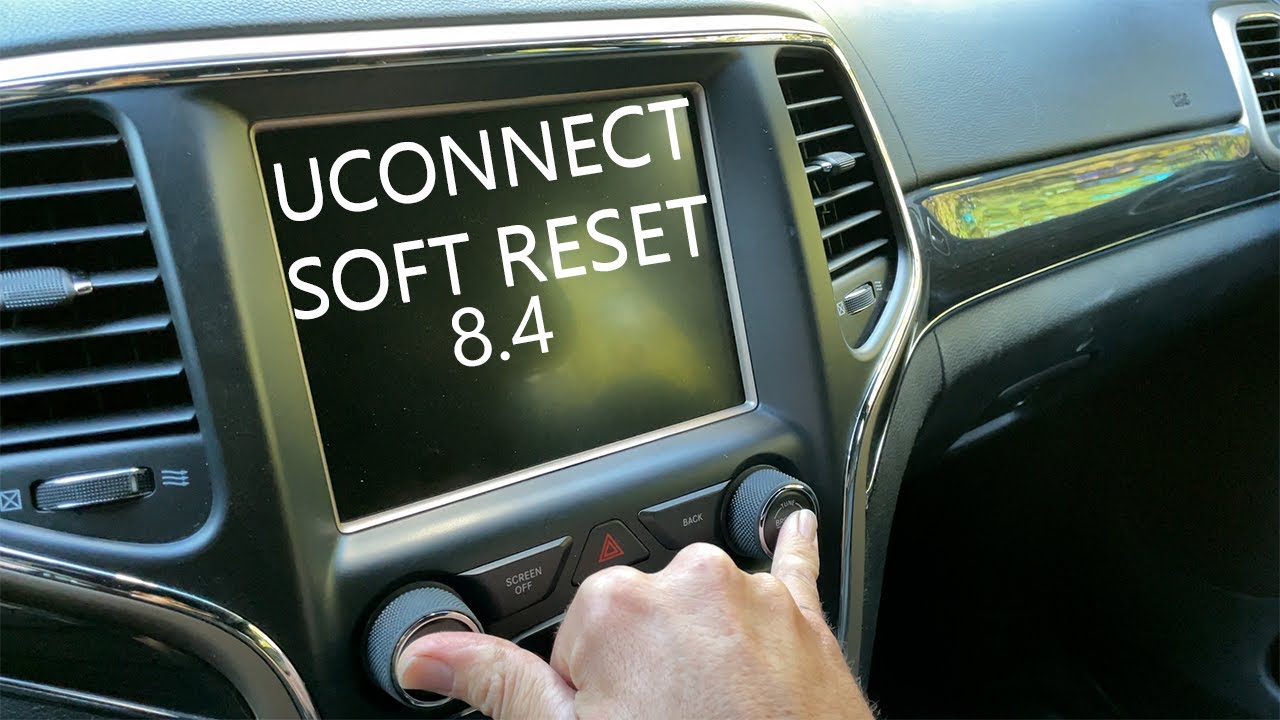
Start by turning your Jeep’s ignition to the “Run” position. The engine can be on or off. Next, press and hold the volume knob and the tuner knob at the same time. Keep holding both knobs down for about 10 seconds. The screen will go black and then restart. Release the knobs once the system reboots.
What Soft Reset Fixes
This reset clears temporary errors in the system software. It fixes frozen or unresponsive touchscreens. It also helps with slow loading of navigation maps or menus. Soft reset does not erase your saved destinations or settings. It is a safe way to refresh the navigation system quickly.

Credit: www.allensamuelsdodgechryslerjeep.com
Hard Reset Guide
Performing a hard reset on your Jeep navigation system can solve many persistent problems. This guide walks you through the necessary steps to restore factory settings. A hard reset wipes all saved data and returns the system to its original state. Follow the instructions carefully to avoid losing important information.
Factory Reset Procedure
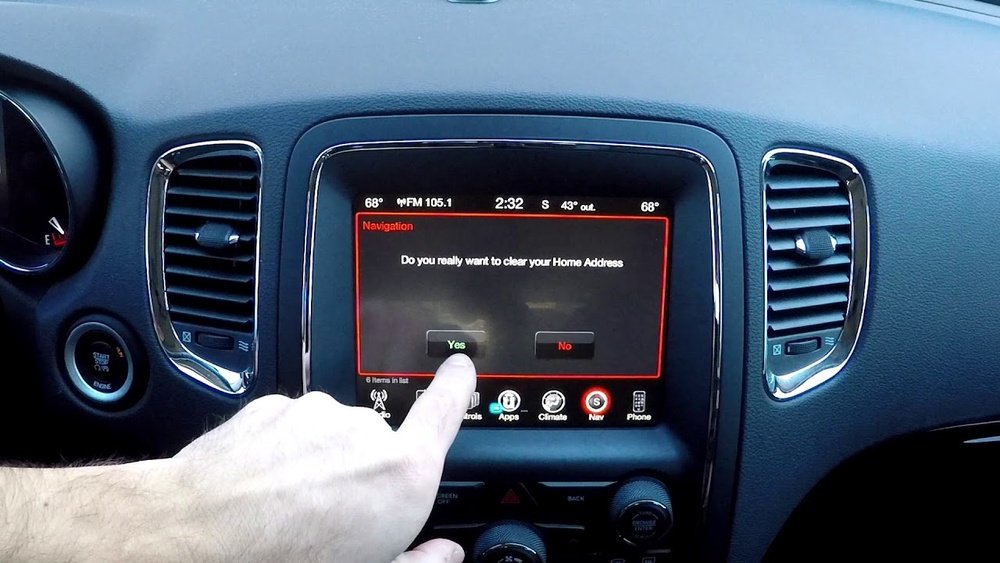
Start your Jeep and power on the navigation system. Access the main menu by tapping the screen. Locate the Settings option and select it. Scroll down and find Restore Settings or Factory Reset. Choose the factory reset option and confirm your choice. The system will begin erasing all stored data. Wait for the process to finish; the screen will go blank and reboot automatically.
Settings Lost After Reset
A hard reset deletes all personal settings on the system. Navigation history, saved destinations, and preferences will be erased. Paired Bluetooth devices will also be removed. You must re-enter your information after the reset completes. Keep this in mind before starting the reset. Back up any important settings or contacts if possible.
Reboot And Setup
After the reset, the system restarts on its own. The screen will display the initial setup menu. Follow the prompts to select language, time, and units. Reconnect your phone via Bluetooth for hands-free calling. Enter your home and work addresses again if needed. Take your time to customize settings for the best experience. Your Jeep navigation system will now work like new.
Troubleshooting Tips
When Jeep navigation acts up, troubleshooting helps find the cause. Fixing simple issues can save time and cost. Try basic checks before considering a full reset.
Checking Fuses
Start by inspecting the fuses related to the navigation system. A blown fuse can cause the screen to freeze or go blank. Locate the fuse box, usually under the dashboard or hood. Use the owner’s manual to find the correct fuse. Replace any blown fuse with one of the same rating. This step often restores power to the system.
Inspecting Wiring
Loose or damaged wiring can interrupt the navigation system’s function. Check connections behind the dashboard or infotainment unit. Look for frayed wires or unplugged connectors. Secure any loose wires carefully to avoid damage. Repair or replace damaged wires to restore proper connectivity. This can prevent frequent system crashes or failures.
Software Update Importance
Outdated software may cause glitches or navigation errors. Regular updates improve system performance and add features. Visit Jeep’s official website for the latest software version. Use a USB drive or Wi-Fi connection to update the system. Keep the navigation maps current for accurate directions. Software updates often fix bugs and enhance stability.
Credit: www.youtube.com
Keeping your Jeep navigation maps updated ensures accurate directions and better route planning. Map updates fix errors, add new roads, and improve your driving experience. Regular updates keep your system reliable and help avoid navigation issues on the road.
Using Fca Toolbox
FCA Toolbox is a software designed for Jeep owners and technicians. It allows you to download and install the latest navigation maps. Connect your Jeep to a computer using a USB cable. Open FCA Toolbox and follow the instructions to check for map updates. Download available updates and transfer them to your vehicle. This method ensures your navigation system has the newest information.
Over-the-air Updates
Many newer Jeep models support over-the-air (OTA) updates. This feature lets you update maps wirelessly without a computer. Make sure your vehicle has an active Wi-Fi or cellular connection. Access the settings menu in your navigation system. Select the update option and allow the system to download and install new maps. OTA updates are convenient and save time.
Different Jeep models may use various navigation providers like Garmin or TomTom. Knowing your provider helps find the correct update files. Check your vehicle’s manual or navigation settings to identify the provider. Visit the provider’s official website for update instructions or software downloads. Using the right source ensures you get compatible and safe updates for your Jeep.
Preventive Maintenance
Preventive maintenance keeps your Jeep navigation system running smoothly. It reduces the chance of glitches and errors. Simple steps can extend the life of the system and improve your driving experience. Regular care avoids the need for frequent resets or repairs.
Regular System Checks
Check your navigation system often to spot problems early. Turn on the system and observe how it responds. Look for delays, freezing, or incorrect directions. Testing all features ensures every function works well. Catching small issues saves time and money later.
Keeping Software Current
Update the navigation software regularly. Manufacturers release updates to fix bugs and add features. Use a USB drive or Wi-Fi to download updates. Follow the instructions in your Jeep’s manual carefully. Updated software keeps maps accurate and improves system stability.
Avoiding Common Issues
Keep the system clean and dry to prevent damage. Avoid using harsh chemicals on the screen. Do not force buttons or knobs; gentle use prevents wear. Disconnect accessories that may cause interference. Proper care reduces crashes, freezes, and other common problems.

Credit: www.billvolzswestchesterchryslerdodgejeep.com
Frequently Asked Questions
How Do You Reboot The Uconnect On A Jeep?
To reboot Uconnect on a Jeep, turn the ignition to “Run. ” Press and hold both the volume and tuner knobs for five seconds. Release them when the screen resets. For a factory reset, go to Controls > Settings > Restore Settings, then confirm to reset and reboot the system.
How Do I Reset My Uconnect Gps?
To reset your Uconnect GPS, press both temperature up and down buttons for five seconds. Then, select the factory reset option in the menu. The system will reboot and restore default settings.
How Do I Reset My Jeep Compass Screen?
To reset your Jeep Compass screen, turn the ignition to “Run. ” Press and hold the volume and tuner knobs simultaneously for five seconds. For a factory reset, go to Controls > Settings > Restore Settings on the Uconnect screen and confirm.
The system will reboot afterward.
Download the free FCA Toolbox from jeep. welcome. naviextras. com. Connect your Jeep’s USB drive to your computer. Use the Toolbox to check and install free navigation updates.
Conclusion
Resetting your Jeep navigation system can fix many common issues quickly. Start with a soft reset to keep your settings safe. If problems persist, try a factory reset, but remember it deletes saved data. Check fuses and software updates if the screen stays unresponsive.
Regular resets help keep your system running smoothly. Now, you can enjoy clear directions without frustration. Easy steps bring your Jeep’s navigation back to life.