How To Update Jeep Grand Cherokee Navigation: 2026 Guide
 Reading Time: 10 minutes
 For a 2015 Jeep Grand Cherokee in the United States, navigation updates usually involve one of two different processes:
- uconnect software update: Updates the radio system, Bluetooth functions, menus, stability, or connected features.
- Navigation map update: Replaces the map database used for routing and addresses.
Check the vehicle’s exact Uconnect system and VIN on the official Uconnect software-update page and the official Chrysler navigation map-update portal before downloading anything. The available update depends on the vehicle’s factory-installed radio, region, and current software version.
Introduction
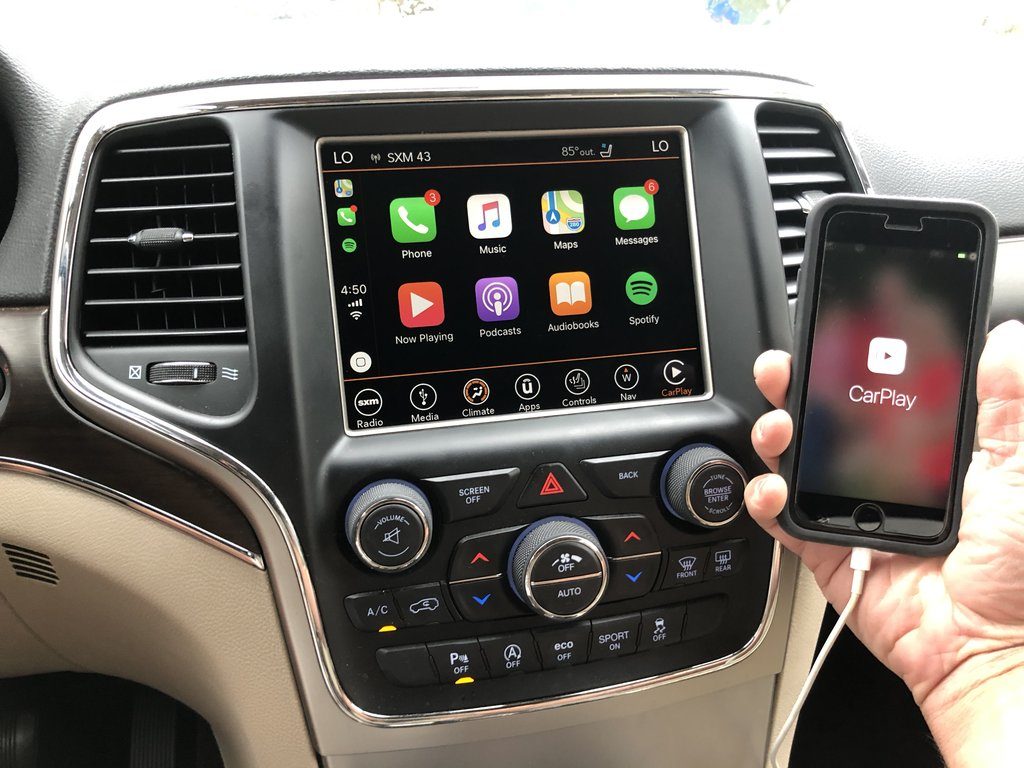
The 2015 Jeep Grand Cherokee may have a Uconnect 8.4-inch system with built-in navigation, but not every 8.4-inch radio includes navigation. A system showing map and navigation menus generally has factory navigation; a system with only media, phone, and vehicle settings may require a different update path—or may not support navigation maps at all.
The safest method is to identify the radio by VIN, use Jeep or Uconnect’s official update instructions, prepare the required USB drive exactly as directed, and leave the vehicle powered throughout the installation. Do not install files intended for a different Jeep model, radio version, or country.
Determine Which Navigation System Your 2015 Grand Cherokee Has
Before buying or downloading an update, confirm that your Jeep has factory-installed navigation. The model year alone does not identify the radio hardware.
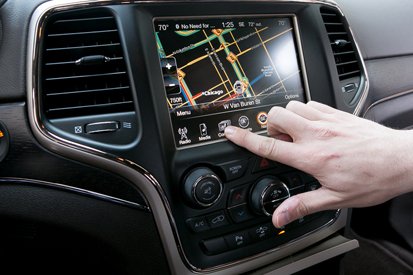
Check the Uconnect screen
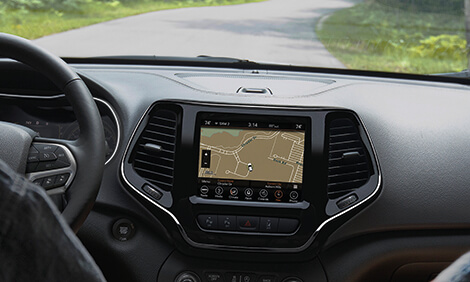
Turn the ignition on while the vehicle is parked and inspect the main menu. A factory navigation-equipped system commonly includes options such as:
- Navigation
- Map
- Where To?
- Destination
- Settings > Navigation
The exact wording can vary by software version.
If the screen has an Apps or Settings menu, look for a system-information page. Depending on the radio version, it may appear under a path similar to:
Settings > System Information
Record the following:
- Uconnect software version
- Radio model or hardware information
- Navigation database version
- Vehicle identification number, or VIN
The VIN is visible through the driver-side windshield, on the vehicle registration, and on insurance documents.
Identify common 2015 Uconnect configurations
A 2015 Grand Cherokee could be equipped with different Uconnect radios and option packages. Some vehicles have:
- Uconnect 5.0 without factory navigation
- Uconnect 8.4 with varying feature sets
- Uconnect 8.4AN or a navigation-capable factory radio
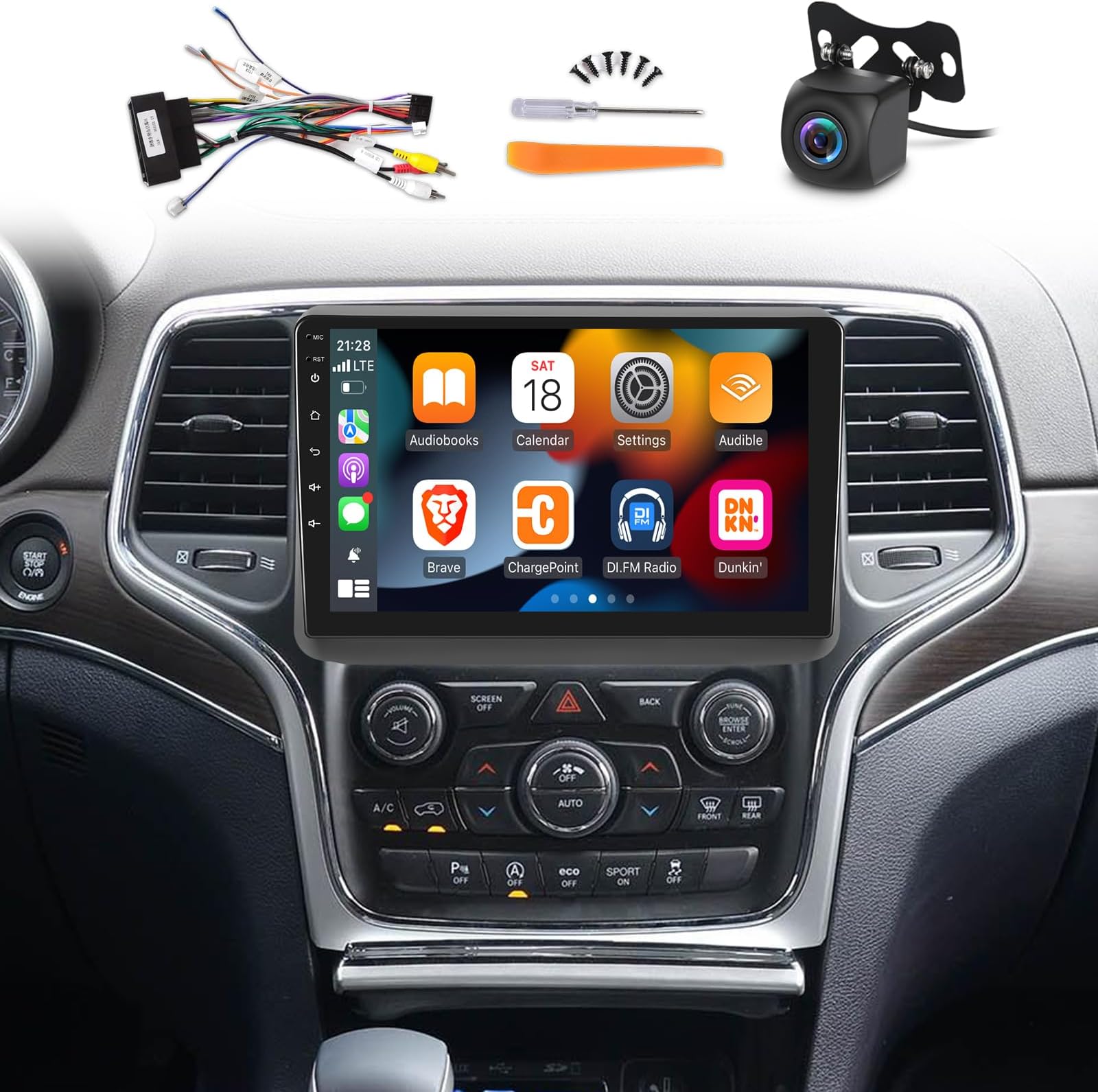
- A replacement or aftermarket radio installed by a previous owner
An 8.4-inch display by itself does not guarantee that the vehicle supports a factory navigation map update.
Verify the vehicle through official tools
Use the VIN on the official Jeep or Uconnect support pages to check for applicable software updates. For map updates, use the official navigation-update portal associated with Chrysler, Jeep, Dodge, and Ram vehicles.
A legitimate update page should identify the vehicle and radio compatibility before offering a download or purchase. If a website provides a generic ZIP file without asking for the vehicle or radio details, do not assume it is safe or compatible.
Uconnect Software Update vs. Navigation Map Update
The most common mistake is treating a Uconnect software update and a map update as the same product. They are separate databases and may use different installation procedures.
| Update type | What it changes | Typical source | May cost money? |
|---|---|---|---|
| Uconnect software update | Radio operating software, compatibility, menus, and system behavior | Official Uconnect software-update page or Jeep dealer | Often provided at no charge when available |
| Navigation map update | Roads, addresses, points of interest, and map data | Official Chrysler navigation map portal | May be a paid product |
| Navigation settings change | Route preferences, units, voice guidance, and map display | Vehicle touchscreen | No update required |
| Aftermarket radio update | Software supplied by the radio manufacturer | Aftermarket manufacturer | Depends on manufacturer |
A software update will not necessarily add recently constructed roads. A map update may not fix a frozen touchscreen, Bluetooth problem, or radio rebooting issue.
What You Need Before Starting
Prepare the vehicle and USB drive before beginning the update.
Prerequisites
You will generally need:
- The Grand Cherokee’s VIN
- A computer with a reliable internet connection
- A USB flash drive that meets the official instructions
- Enough time for the download and vehicle installation
- The vehicle parked in a safe, well-ventilated location
- A stable vehicle power supply
The official update page determines the required USB capacity and formatting. Do not assume that every Uconnect update uses the same drive size or file system. Some update packages may require a FAT32-formatted USB drive, while the official instructions may specify a different requirement.
Power precautions
Do not start the update if the vehicle battery is weak. A failed installation caused by low voltage can leave the radio unusable until it is recovered by a dealer.
Before updating:
- Park outside or in a well-ventilated area.
- Engage the parking brake.
- Turn off unnecessary electrical accessories.
- Make sure the vehicle has adequate fuel if the instructions require the engine to remain running.
- Keep the key fob inside the vehicle.
- Do not remove the USB drive or switch off the ignition during installation.
Never perform the procedure while driving.
How to Update 2015 Jeep Grand Cherokee Navigation
The exact screens and download process can change, so follow the instructions generated for the VIN and radio. The following sequence reflects the normal official-update workflow.
Step 1: Check the current software and map versions
Open the Uconnect system-information screen and photograph or write down the displayed versions. This gives you a reference if the update fails or the system appears unchanged afterward.
If the vehicle does not show a navigation database or map version, verify that it actually has factory navigation before purchasing map data.
Step 2: Check for a Uconnect software update
Visit the official Uconnect software-update page and enter the VIN when requested. If a compatible update is available, read the listed requirements and installation notes.
Do not rely solely on the model year. The same year and trim can have different radios, and a software package for one Uconnect unit may not work on another.
Download only the package provided for the identified vehicle or radio.
Step 3: Check the official map-update portal
For map data, use the official Chrysler/Jeep navigation map-update website. Enter the requested vehicle, radio, or product information.
The portal may show:
- Whether a map update is available
- The map coverage region
- The navigation database release
- The price, if the update is sold separately
- USB preparation instructions
- Installation requirements
Map updates are commonly sold by region. A United States vehicle should use the North American or United States package specified by the portal—not a European or unrelated regional package.
Step 4: Prepare the USB flash drive
Follow the official formatting and file-copy instructions precisely.
In many update workflows, the computer downloads an installer or compressed package that prepares the USB drive. In others, the files must be extracted to the drive’s root directory. The correct method depends on the specific portal and update.
Avoid these common errors:
- Copying the ZIP file without extracting it when extraction is required
- Placing the update inside an extra folder
- Combining software-update files with map-update files
- Using a drive containing unrelated personal files
- Renaming files or folders
- Downloading from a third-party file-sharing site
After preparation, safely eject the USB drive from the computer.
Step 5: Install the update in the Jeep
Start the Jeep and leave it parked. Insert the prepared USB drive into the vehicle’s compatible USB port.
The Uconnect system may display a prompt asking whether to update. Confirm the update only after checking that the displayed version and vehicle information are correct.
During installation:
- Keep the ignition or engine state exactly as the instructions require.
- Do not operate the touchscreen unnecessarily.
- Do not remove the USB drive.
- Do not turn off the vehicle.
- Do not open or close electrical systems repeatedly.
- Allow the system to restart if prompted.
A large map database can take substantially longer than a small software patch. The displayed progress may pause during validation or installation; that does not automatically mean the process has failed.
Step 6: Complete the second-stage update if required
Some update packages use more than one USB drive or require the vehicle to restart between stages. If the official instructions specify a second drive, use it in the stated order.
Do not improvise by inserting both drives together or repeating the installation unless the on-screen instructions direct you to do so.
Step 7: Verify the result
After installation finishes, allow the Uconnect system to reboot fully. Then check:
- The software version
- The navigation database version
- The map display
- A known local address
- GPS position
- Route calculation
- Voice guidance
- Bluetooth and other functions you use regularly
A successful map update should show a newer navigation database version. The newest map will not necessarily include every recent road, business, address, or construction change.

If the Navigation Update Fails
Troubleshoot the failure based on the symptom rather than repeatedly reinstalling the same files.
The Jeep does not recognize the USB drive
Possible causes include:
- Incorrect USB formatting
- Incompatible drive capacity
- Files placed in the wrong folder
- An incomplete download
- A damaged or unsuitable flash drive
- The wrong USB port
- An update package intended for another radio
Download the package again from the official source, recreate the drive according to the instructions, and try a different compatible USB drive if permitted. Do not keep inserting the drive while the system is restarting.
The update says the file is invalid
An invalid-file message usually indicates a compatibility or preparation problem. Check:
- The VIN and vehicle selection
- The Uconnect radio version
- The map region
- The download completion
- The extraction process
- The required file structure
- The USB format
Do not use a file from a forum or file-sharing site as a substitute. Even if another owner reports success, that file may belong to a different hardware revision.
The update stops or the screen appears frozen
First, follow the official instructions about how long the system may take to respond. Some stages can remain on one screen while the system verifies data.
If the vehicle loses power or the process remains unresponsive beyond the stated installation time, contact a Jeep dealer or Uconnect support before trying a random reset. Repeated power interruptions can worsen a failed firmware installation.
The map is unchanged after the update
Check the navigation database version rather than relying only on the map appearance. Map styling may remain similar after an update.
If the version did not change, possible causes include:
- The update was canceled before completion
- The wrong package was installed
- The system accepted a software update but not the map update
- The map product was not compatible with the radio
- The vehicle already had that database version
The navigation location is inaccurate
If the map database updated but the vehicle icon is misplaced, the issue may involve GPS reception, antenna wiring, or the navigation system rather than outdated maps. Test the vehicle outdoors with a clear view of the sky. If the position remains inaccurate, seek diagnostic service.
When a Dealer Is the Better Option
A dealer or qualified automotive electronics technician is the safer choice when:
- The screen is black or continuously rebooting
- The update failed during firmware installation
- The battery went dead during the update
- The radio was replaced
- The VIN portal does not recognize the vehicle
- The navigation system is missing from a vehicle that should have it
- The vehicle has aftermarket wiring or accessories
- The USB update repeatedly fails after correct preparation
A dealer may be able to identify the radio hardware, restore failed software, test the battery and charging system, or determine whether the unit needs replacement. A map update cannot repair defective GPS hardware or a failing Uconnect radio.
Cost, Compatibility, and Update Limitations
The price and availability of a 2015 Grand Cherokee navigation update can change. Map data is often sold separately from Uconnect software, and older systems may eventually receive fewer or no new map releases.
Before purchasing, confirm:
- The update is for a 2015 Jeep Grand Cherokee
- The radio is factory-installed and navigation-capable
- The coverage includes the United States and any needed Canadian or Mexican areas
- The update is compatible with the current radio software
- The product is refundable if the portal’s compatibility check fails
- The installation method matches the available USB ports and computer
A newer map does not upgrade the Uconnect hardware, add smartphone-based navigation, or guarantee current traffic information. Map data, traffic services, and connected services are separate features.
Common Mistakes to Avoid
Avoid these practices when updating a 2015 Jeep Grand Cherokee:
- Buying a map advertised only by model year without verifying the radio
- Confusing a Uconnect software update with a navigation map update
- Using unofficial or modified firmware
- Removing the USB drive during installation
- Updating with a weak vehicle battery
- Performing the update in accessory mode when the instructions require the engine to run
- Assuming that an 8.4-inch screen automatically has navigation
- Selecting the wrong geographic region
- Interrupting the installation because the progress display appears slow
- Repeating the update after a failure without identifying the cause
The most reliable approach is to confirm the radio, check the VIN, follow the official package instructions, and verify the database version afterward.
Frequently Asked Questions
Can I update the navigation maps for free?
Sometimes a manufacturer-provided map update may be included, but map updates for older Uconnect systems may also be sold separately. The official navigation portal determines availability and price for the specific vehicle and region.
Does updating Uconnect update the maps?
Usually, no. Uconnect software controls the radio system, while navigation maps are a separate data package. Check both the software version and navigation database version after installation.
Can I use Google Maps or Apple Maps instead?
The 2015 Grand Cherokee’s original Uconnect system may have limited smartphone integration compared with newer vehicles. If the factory system does not support the required phone-projection feature, you can use a phone separately, add a compatible aftermarket solution, or continue using the built-in navigation. Do not assume that a software update will add modern smartphone-projection functions.
How do I know whether my Jeep has factory navigation?
Look for a dedicated Navigation or Map menu and verify the navigation database under system information. The vehicle’s VIN and original equipment records can provide additional confirmation.
What if my 2015 Grand Cherokee has an aftermarket radio?
Use the aftermarket radio manufacturer’s update instructions instead of the factory Uconnect process. Factory Jeep map files are generally not compatible with aftermarket hardware.
Conclusion
To update navigation in a 2015 Jeep Grand Cherokee, first identify the factory Uconnect radio and record its current software and map versions. Then use the VIN-based Uconnect and official Chrysler navigation portals to obtain the correct software or map package. Prepare the USB drive exactly as instructed, maintain stable vehicle power, avoid interrupting the installation, and verify the new database version when finished.
If the system rejects the USB drive, loses power, or fails during firmware installation, stop repeated attempts and contact Uconnect support or a Jeep dealer. The next practical step is to check the official update portals using the vehicle’s VIN before purchasing or downloading any file.